

JavaScript
(Available from version 7.2 onwards.)
Prerequisites
Active Scripting must be enabled for the functions in the JavaScript built-in service to work when the solution is run.
 Show instructions
-
Open the Internet Properties window.
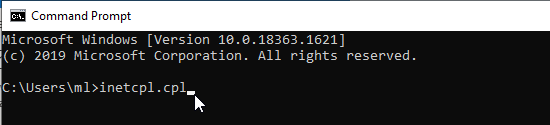
To open the window from the command prompt, enter inetcpl.cpl.
-
Open the Security tab.

-
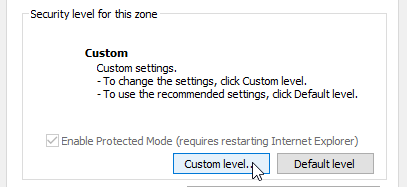
Click Custom Level.
-
Open the Scripting category
-
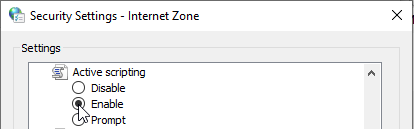
Set Active Scripting to Enable.
-
Click OK.
Example for JavaScript
An example workflow is presented for each function described below. All workflows are included in a sample project.
Show download instructions
To view the sample project:
-
Download the ZIP file of the sample project here.
-
Copy the following files to the folder%AppData%/Nice_Systems/AutomationStudio/Projects:
-
JavaScript.resx
-
JavaScript.dproj
-
-
Copy the following files to the folder c:/temp.
-
SampleJS.html
-
-
Open the project JavaScript in Automation Studio. Each workflow is named with the name of the function it demonstrated.
Functions
Execute JavaScript Function from File
Executes a specified JavaScript function located in a specified file. You can specify the values of the parameters required by the function. If the function returns a value, it is returned as text.
The Real-Time Client uses Internet Explorer to run this function.
Active Scripting must be enabled for this function to work. See Prerequisites.
Parameters
|
Parameter |
Input Type |
Description |
|---|---|---|
|
function name |
Text |
The name of the function to execute |
| full path | Text | The full path to the file that includes the function |
| parameters | List of Text | A list of the input parameters expected by the function |
Returns
If the function returns a value, it is returned as text.
Example
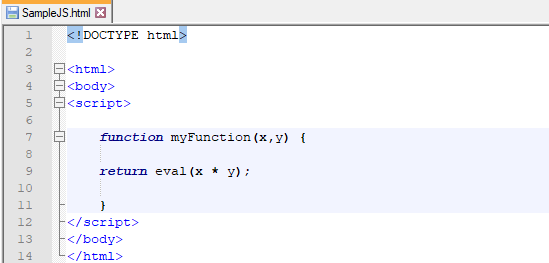
This workflow executes a JavaScript function called myFunction in the file at c:/temp/SampleJS.html. Two input parameter values are specified, 3 and 5. The result is stored in the text variable textVar.
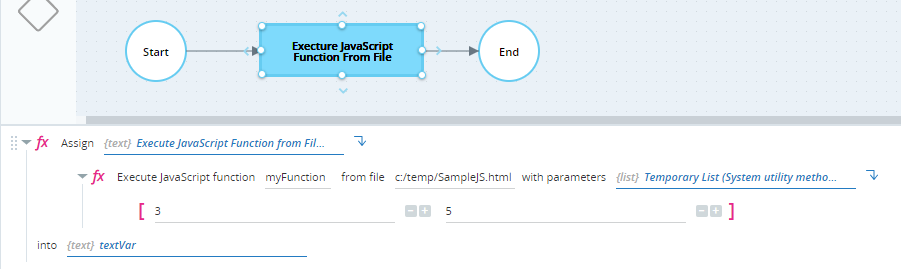
The contents of the file SampleJS.html are shown below. The function myFunction multiplies the two input parameter values and returns the result.
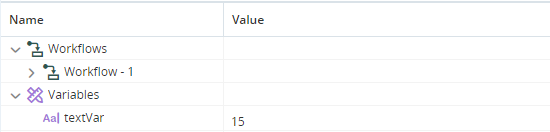
When the workflow is executed, the value of textVar is set to 15, as expected.
Execute JavaScript Function from Code
Executes a specified JavaScript function included in text specified. You can specify the values of the parameters required by the function. If the function returns a value, it is returned as text.
The Real-Time Client uses Internet Explorer to run this function.
Active Scripting must be enabled for this function to work. See Prerequisites.
Parameters
|
Parameter |
Input Type |
Description |
|---|---|---|
|
function name |
Text |
The name of the function to execute |
| code | Text | The JavaScript code that includes the function. The code must be included within <script> </script> tags. |
| parameters | List of Text | A list of the input parameters expected by the function |
Returns
If the function returns a value, it is returned as text.
Example
This workflow executes a JavaScript function called myFunction located in the text:
<script>

	function myFunction(x,y) {

	return eval(x * y);

	}
</script>
The function myFunction multiplies the two input parameter values and returns the result.
Two input parameter values are specified, 3 and 5. The result is stored in the text variable textVar.
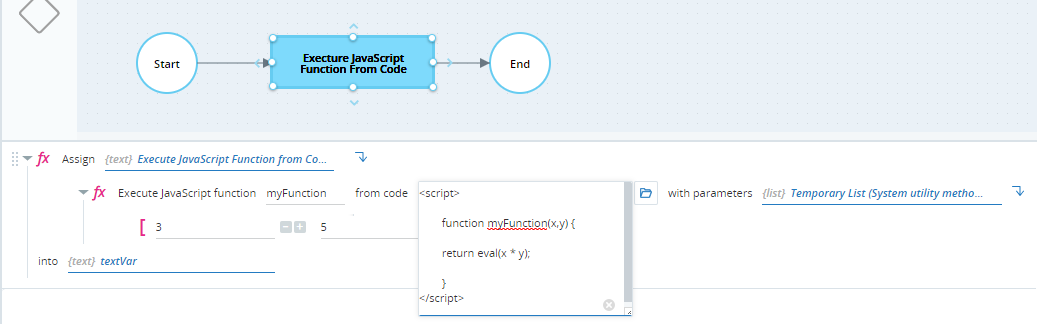
When the workflow is executed, the value of textVar is set to 15, as expected.
